Understanding the Enquiry Tracker
Overview
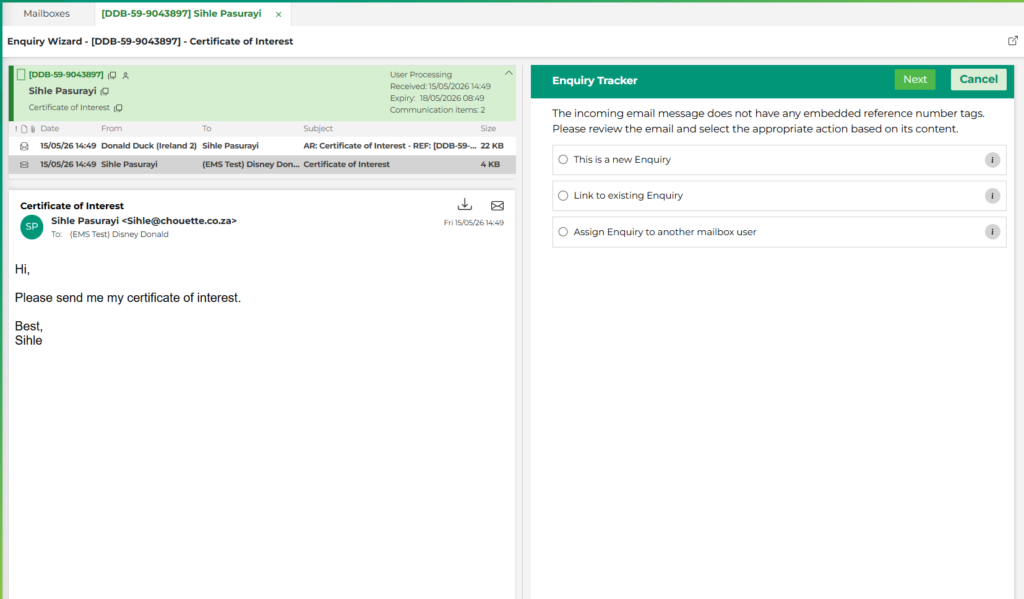
When working on a new enquiry for the first time, the system may display the Enquiry Tracker panel as part of the Enquiry Wizard. This panel appears specifically for enquiries that are in a Received status.
Because the system cannot automatically determine how the email should be handled, it prompts the user to review the email content and select the appropriate action manually.
When Does the Enquiry Tracker Appear?
The Enquiry Tracker panel is shown when all of the following conditions are met:
- The enquiry is in a Received status
- The enquiry is being worked for the first time
- The incoming email does not contain an enquiry reference number
The Enquiry Wizard Layout
When the Enquiry Tracker is active, the Enquiry Wizard displays two panels side by side. The left panel shows the enquiry details and the email content, allowing the user to read the email before making a decision. The right panel displays the Enquiry Tracker options.
The enquiry header also shows useful context at a glance, including the date and time the enquiry was received, the expiry date and time, and the number of communication items associated with the enquiry.
Please see screenshot below:
Available Options
The Enquiry Tracker presents three options to choose from. Each option has an information button that can be selected for additional guidance.
This is a new Enquiry
Select this option if the enquirer is asking a new question and is not referring to an existing enquiry. This is the most common selection when a customer makes a fresh request or raises a new issue.
Link to existing Enquiry
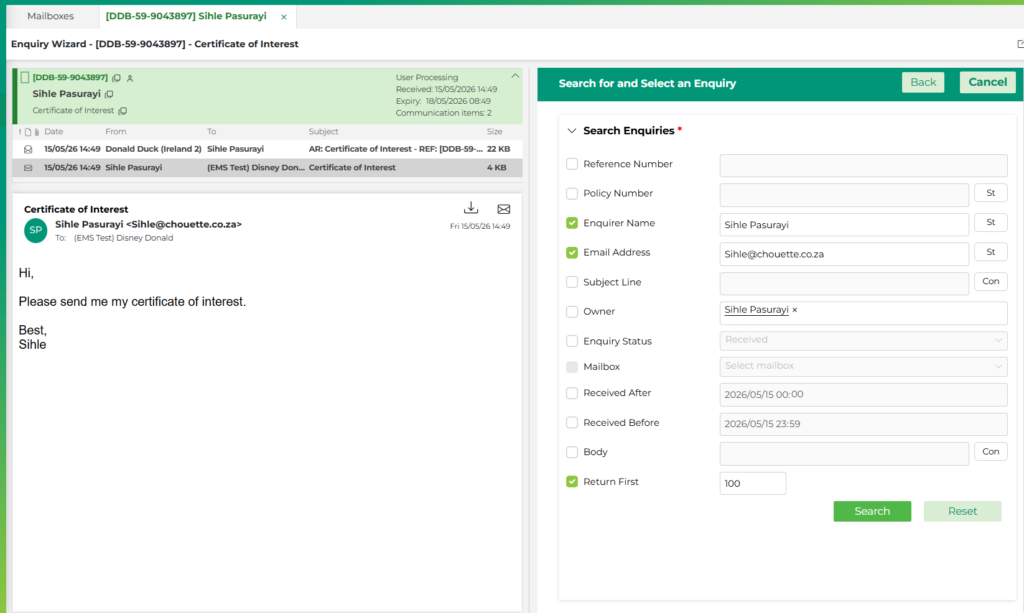
Select this option if the email relates to an enquiry that already exists in the system. The system will allow you to search for and link it to the correct enquiry thread.
Please see image below:
Assign Enquiry to another mailbox user
Select this option if the enquiry should be handled by a different user. The system will allow you to select the appropriate person to assign it to.
Please see image below:

What Happens Next?
Once the appropriate option has been selected, click Next to continue through the Enquiry Wizard. The system will then guide you through the remaining steps based on the option chosen. Clicking Cancel will exit the wiza