Enquiry Expiry and Reminder Alarm Settings
Overview
When an enquiry is not being resolved immediately, the system gives you the ability to diarise it for a future date. This step appears in the Enquiry Wizard whenever you have chosen an action that leaves the enquiry in a pending status — for example, when you are waiting for a response from the enquirer or from an internal team.
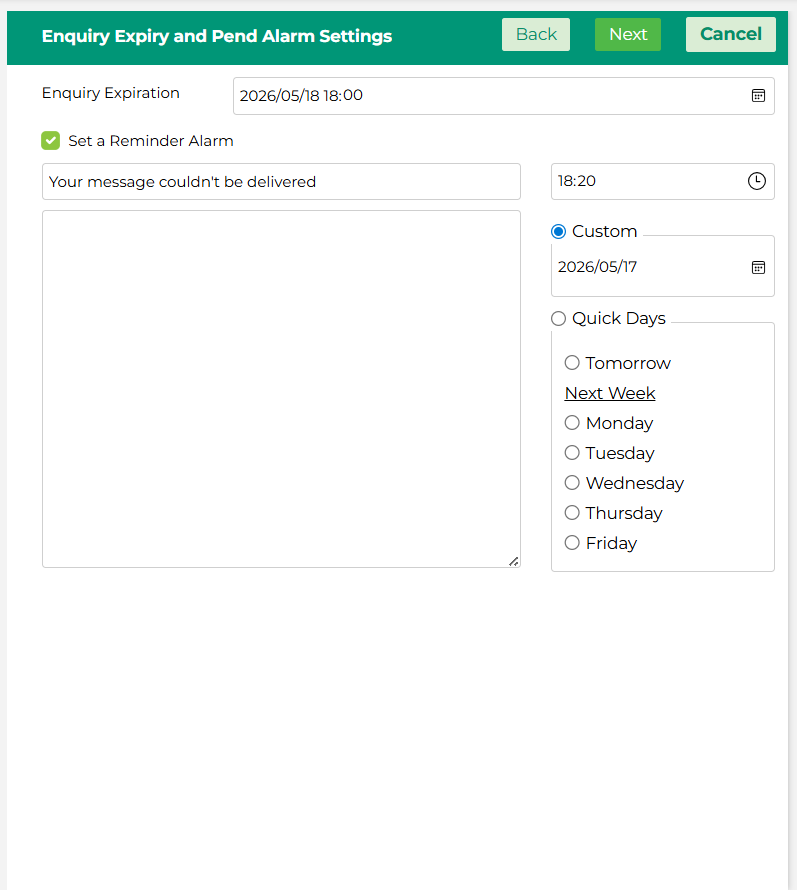
Diarising an enquiry ensures that nothing gets forgotten and that follow-ups happen when they are supposed to.
Enquiry Expiration
The Enquiry Expiration date is the deadline by which the enquiry should be resolved or followed up on. You set this yourself based on the action you have taken and the timeframe you have committed to.
For example, if you have sent an email to the enquirer asking for more information and given them three days to respond, you would set the expiration date to reflect that deadline.
Setting a Reminder Alarm
In addition to the expiration date, you can also set a personal Reminder Alarm by ticking the Set a Reminder Alarm checkbox. When the alarm triggers, you will receive a notification reminding you to follow up on the enquiry.
The reminder alarm is useful when you want to check in on an enquiry before its expiration date — giving you time to act if things have not progressed as expected.
You can set your reminder alarm in one of two ways:
Custom Select a specific date and time for your reminder. Use this when you have a particular follow-up date in mind.
Quick Days Select from a set of preset options for convenience — Tomorrow, or any day of the following week from Monday through to Friday. Use this when a rough timeframe is sufficient.
You can also add a note in the text field to remind yourself of the context or what action is needed when the alarm fires.
What Should You Do Here?
Think about the action you have just taken and ask yourself — when do I realistically expect a response or need to follow up? Set your expiration date to reflect that commitment, and if you want an earlier nudge, set a reminder alarm to prompt you before the deadline arrives.
Once you are happy with your settings, click Next to Finish the Enquiry Wizard.