Searching for Enquiries
The Search Enquiries feature helps you find enquiries when you don’t want to scroll through a mailbox or when you’re looking for something specific.
You can search using as much or as little information as you have. You don’t need to fill in every field, even one or two details are usually enough.
Where to find Search Enquiries
From the main navigation, select Search Enquiries.
This opens the search screen where you can enter the details you’re looking for.
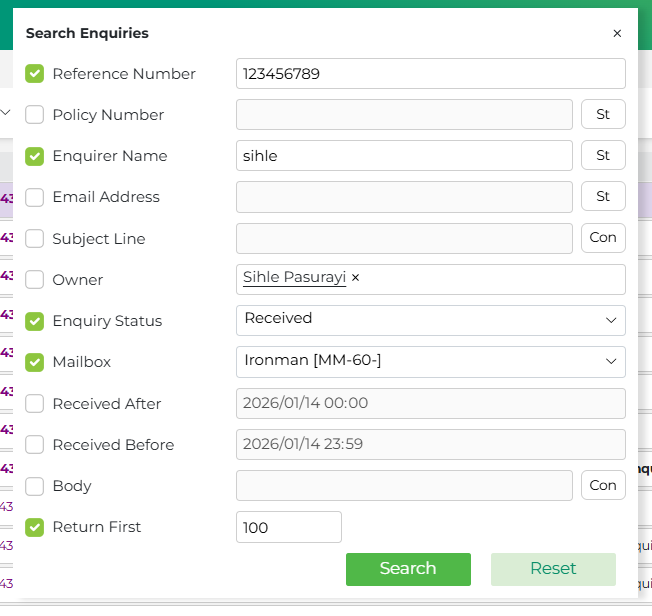
See screenshot below showing the Search Enquiries screen.

How to search
Start by entering any information you have about the enquiry. For example:
- A reference number or policy number if you have one
- The enquirer’s name or email address
- A keyword from the subject line or body of the enquiry
- The mailbox it was received into
- The owner or enquiry status
- A date range using Received After and Received Before
You can combine fields to narrow down your results, or leave fields blank to keep the search broader.
See screenshot below showing search fields completed.
Understanding the date filters
The Received After and Received Before fields let you control the time period you’re searching in.
By default, the search is set to:
- Start at the beginning of the selected day (00:00)
- End at the end of the selected day (23:59)
This helps you avoid missing enquiries that came in earlier or later in the day.
Running the search
Once you’ve entered your criteria:
- Click Search to run the query
- Use Reset if you want to clear all fields and start again
You can also control how many results are returned by adjusting Return First (for example, returning the first 100 results).
See screenshot below showing Search and Reset buttons

Viewing the results
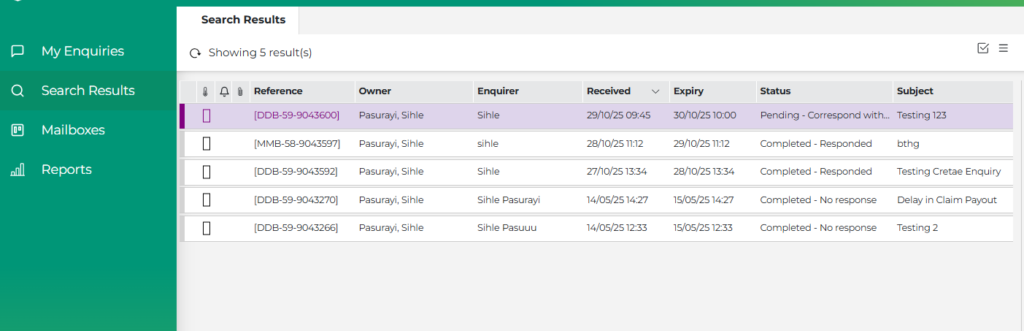
Search results appear in the Search Results tab.
Each result shows key information such as:
- Reference and policy numbers
- Enquirer details
- Subject line
- Owner and enquiry status
- Mailbox and received date
From here, you can open an enquiry directly to view or action it.
See screenshot below showing the Search Results tab with results.
A few helpful tips
- You don’t need to know the exact wording – partial names or keywords usually work
- If you’re getting too many results, add a mailbox or date range
- If nothing comes back, try widening the date range or removing some fields
In short
Search Enquiries is there to help you quickly track down enquiries without digging through mailboxes. Use whatever information you have, run the search, and open the result you need.