Showing and Hiding Columns in the Grid
Sometimes the enquiry grid shows more columns than you actually need. This update lets you clean up your view by hiding columns you don’t use, while keeping the layout consistent for everyone.
You can do this in My Enquiries, Search Results, and Mailboxes. Each view is treated separately, so changing columns in one place won’t affect the others.
How it works
If you right-click on any column header in the grid, you’ll see an option to show or hide columns.
See screenshot below showing which elements to right clicl on

When you open this menu, you’ll get a list of all available columns for that view. Columns that are currently visible are ticked. Columns that are hidden are unticked.
You can:
- Untick columns you don’t need to remove them from the grid
- Tick columns to bring them back
Once you save, the grid updates immediately.
See screenshot below showing the Show / Hide Columns list.
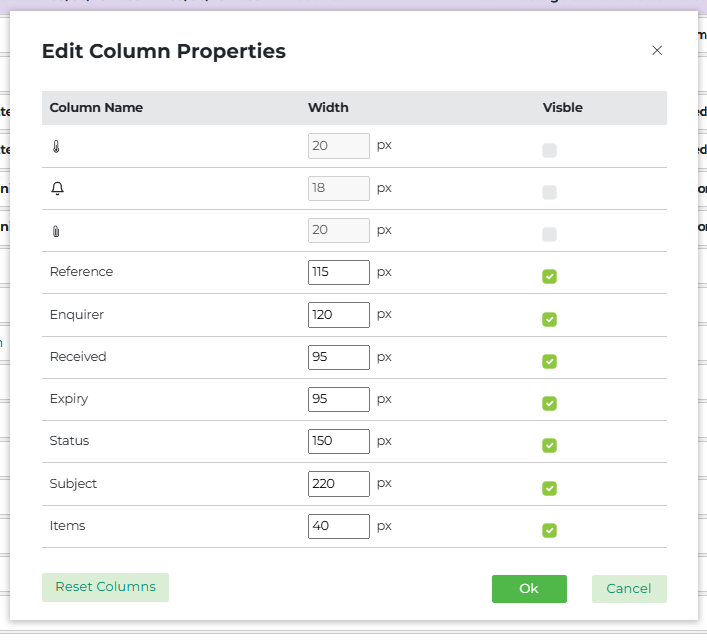
You’ll always need to keep at least one column visible. If you try to untick everything, you’ll get a message asking you to select at least one column before saving.
Resetting back to the default view
If you’ve hidden a few columns and later want to go back to the original layout, you don’t need to manually reselect everything.
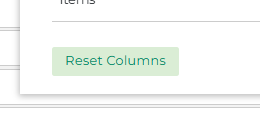
Just right-click on a column header again and choose Reset Column. This restores the system-defined set of columns for that view.
See screenshot below showing the Reset Columns option.
A few things to be aware of
This feature is about visibility, not rearranging the grid.
- Column order stays the same for everyone
- Columns can’t be dragged or reordered
- The system controls the default layout
This keeps the grid predictable, while still letting you remove what you don’t need.
Will I have to do this every time?
No. Once you’ve chosen which columns you want to see:
- Your settings are saved per view
- They’re linked to your user profile
- They stay the same when you log out and back in
- They’re also retained when you switch between tenants
You only need to change them again if you want to.
Related grid behaviour you might notice
You may also notice some general grid improvements while working.
Column widths you set stay the same, even if you resize the screen. Resizing one column won’t automatically resize others. If you double-click the edge of a column, it will snap to the width of the longest value in that column.
The grid itself is also more compact, with less white space and thinner separators, so you can see more information on screen at once.
In short
This feature is just there to make the grid easier to work with. Hide what you don’t use, keep what you do, and reset whenever you need to.